 Sail Hub
 Windows games on Linux
On Linux, native games launch directly, and Windows games run through Proton, the same compatibility layer Steam uses.
Set up once#
- Open Settings → Compatibility.
- Click Set up Windows gaming. Sail downloads GE-Proton and UMU for you (this needs Python 3).
- Choose a Default compatibility version, or let Sail ask each time you set up a game.
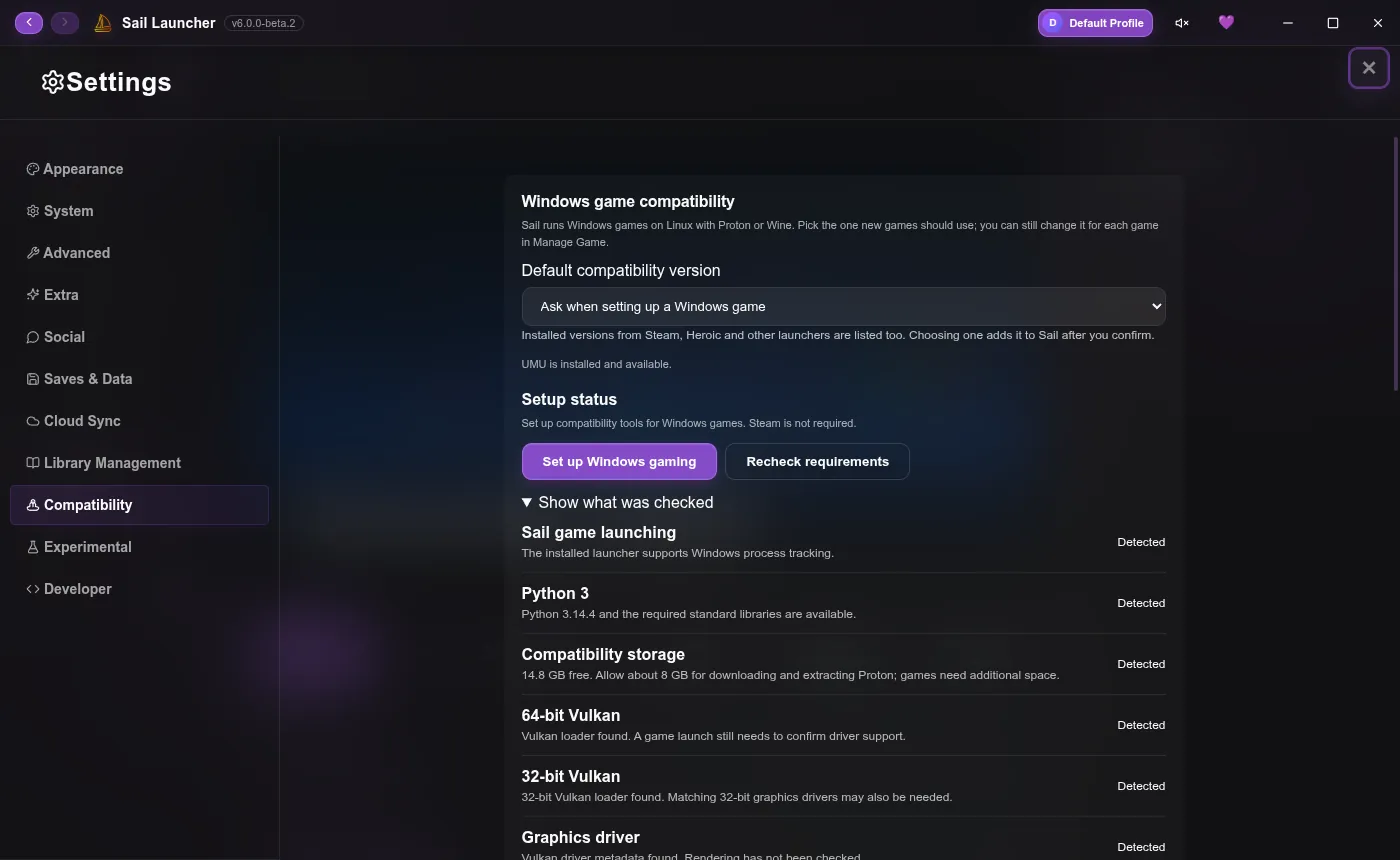
Show what was checked lists what Sail found on your system, like Python, Vulkan and graphics drivers, so you can see what's missing if something doesn't work.
Per game#
Open a game's Manage Game window. Under Compatibility you can:
- pick which Proton version it uses, or browse for another Proton folder or a Wine executable,
- set Wine DLL overrides (for Geode,
xinput1_4=n,b), - run a Windows installer inside the game's environment,
- install Windows components it needs, like Visual C++ or DirectX, straight from Microsoft,
- and View launch log when a game won't start.
Using mods?
Mod loaders such as Geode work better with Proton than with plain Wine, which can hang or show a blank window.
The first launch is slow#
The first time a Windows game runs, Proton builds its Windows environment and may download a Linux runtime. That can take a few minutes. After that, it starts normally.
Still stuck? See Linux troubleshooting.
Last updated 20 October 2026