 Sail Hub
 Developer mode
Developer mode shows a layout you're making straight from its folder. You don't need to zip or install anything while you work.
Turn it on#
- Open Library Layouts' settings: the gear at the bottom of the left panel, or the Settings button next to Library Layouts in the Plugin Manager.
- Under For layout makers, turn on Developer mode.
- Paste your folder's path into Layout folder, or use Choose folder… in the panel that appears. Pick the folder that holds your
plugin.json.
Sail switches to your folder, listed as Developer folder in the Layout setting. Turning developer mode off goes back to the layout you had before.
The panel#
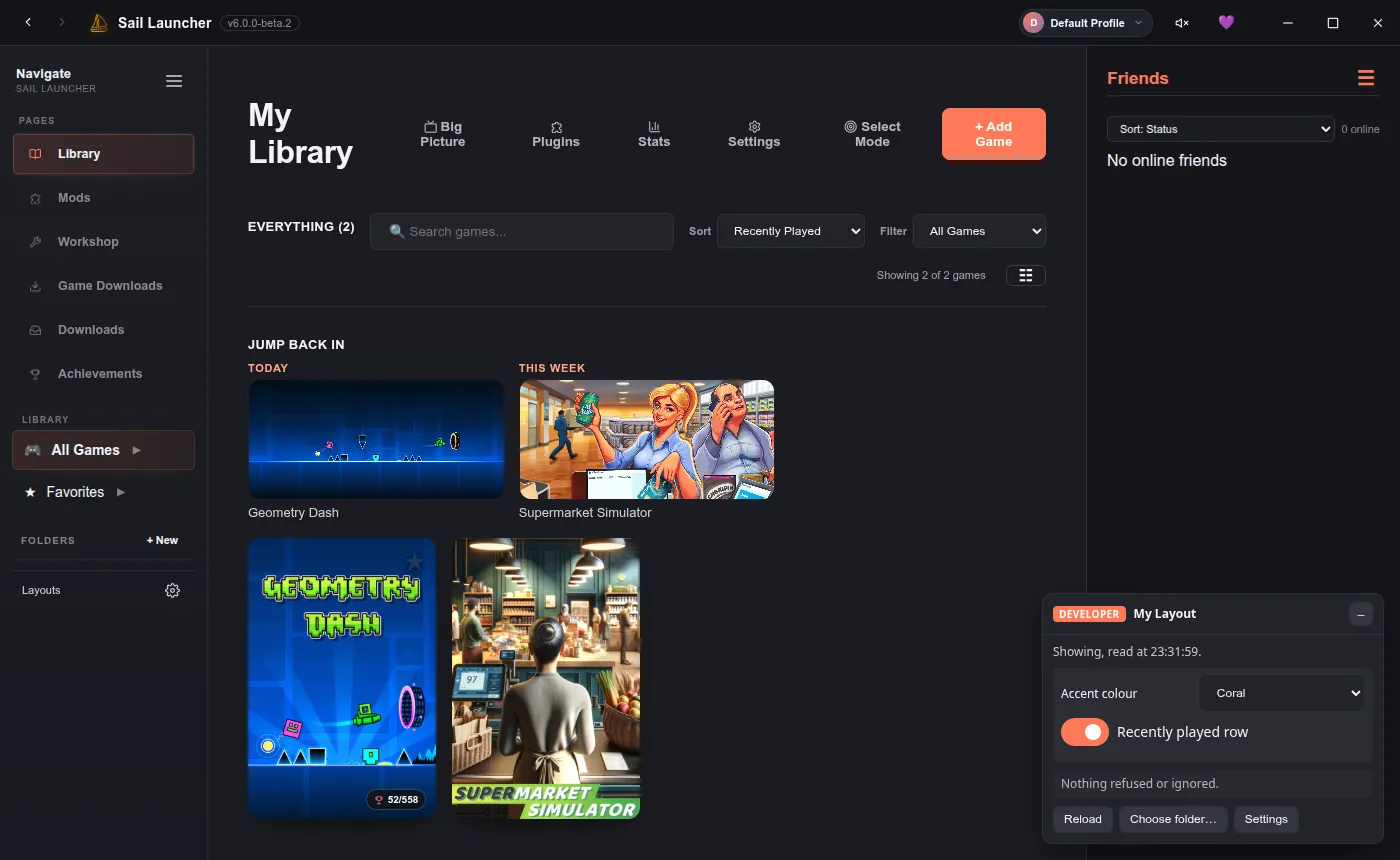
A small panel sits in the bottom-right corner while your folder is showing:
- Whether your layout is showing, and when it was last read.
- Your layout's switches and lists, to try every option. These last until you restart Sail and are never saved.
- Refused: problems that stop your layout from showing, such as a CSS rule that isn't allowed, a missing stylesheet or broken JSON. Fix them and save.
- Ignored: things the engine skipped but still showed the layout without, such as an unknown block, label or colour token.
- Reload, Choose folder… and Settings. The – button folds the panel away.
Reload on save#
The folder is watched. Save any file in it and Sail reads the layout again within a moment. If watching isn't possible on your system, the panel says so; use Reload after saving.
Checks are the same as for everyone
Your folder goes through exactly the same checks as an installed layout, so if it shows in developer mode, it'll show for the people who install it.
Last updated 20 October 2026