 Sail Hub
 Plugins
Plugins add features to Sail, from small tweaks to whole new layouts. You can get them from Sail Hub or install them from a file.
Install from Sail Hub#
- Click Sail Hub at the top of your library.
- Find a plugin and install it. Sail downloads it, checks it and starts it.
You can also browse them on the Sail Hub website.
Install from a file#
- Click Plugins at the top of your library to open the Plugin Manager.
- Click Import Plugin and choose the plugin's
.zip,.raror.7z.
Import Pack installs a set of plugins someone exported with Export as Pack, and Open Folder shows where your plugins are.
A plugin with code runs with the same access as Sail itself. Install plugins from people you trust, or read their code first. Layouts are the exception: they can't contain code, so they're safe from anyone.
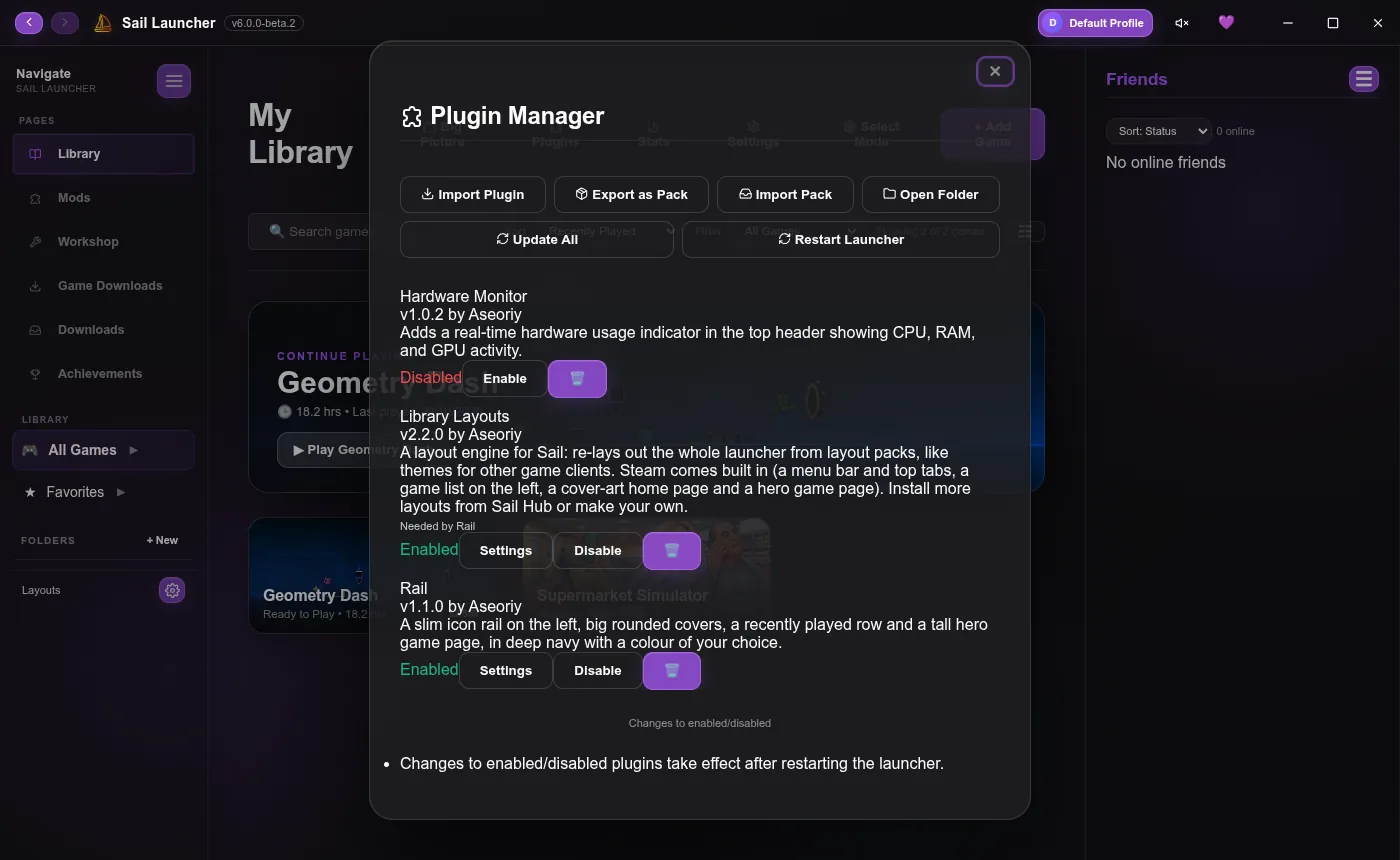
Turn plugins on and off#
Each plugin in the Plugin Manager has an Enable or Disable button and shows its state: Enabled, Disabled, Waiting (it needs another plugin) or Not compatible (it doesn't support your system). Most plugins stop and start straight away; an older one that can't may need Restart Launcher. The 🗑️ button deletes a plugin.
Plugin settings#
Plugins with options get a Settings button in the Plugin Manager, which opens a settings window drawn by Sail. Settings are kept on each PC.
Updates#
When Sail Hub has a newer version of a plugin you have, the Plugins button shows a badge. Click Update All in the Plugin Manager to update them. A plugin is only updated to a newer version, never an older one.
Plugins that need other plugins#
Some plugins build on another one; layouts, for example, need Library Layouts. When you install one and the plugin it needs is missing, turned off or too old, Sail says which one, and Get requirements installs it from Sail Hub. Until then the plugin shows as Waiting and doesn't run.
Last updated 20 October 2026