 Sail Hub
 Make a layout
Layouts change how the whole launcher is laid out and how it looks, like skins for other game clients. A layout is only a manifest, CSS, images and fonts, with no code, so anyone can install one safely.
How it works#
Library Layouts is the engine: a Sail plugin that builds the parts a layout asks for (a menu bar, a game list, a hero game page, a properties window and more) and applies the layout's CSS. Steam comes built in. Every layout you install shows up in the engine's Layout setting, and switching is instant. Off puts Sail back exactly as it was.
| Steam (built in) | Rail |
|---|---|
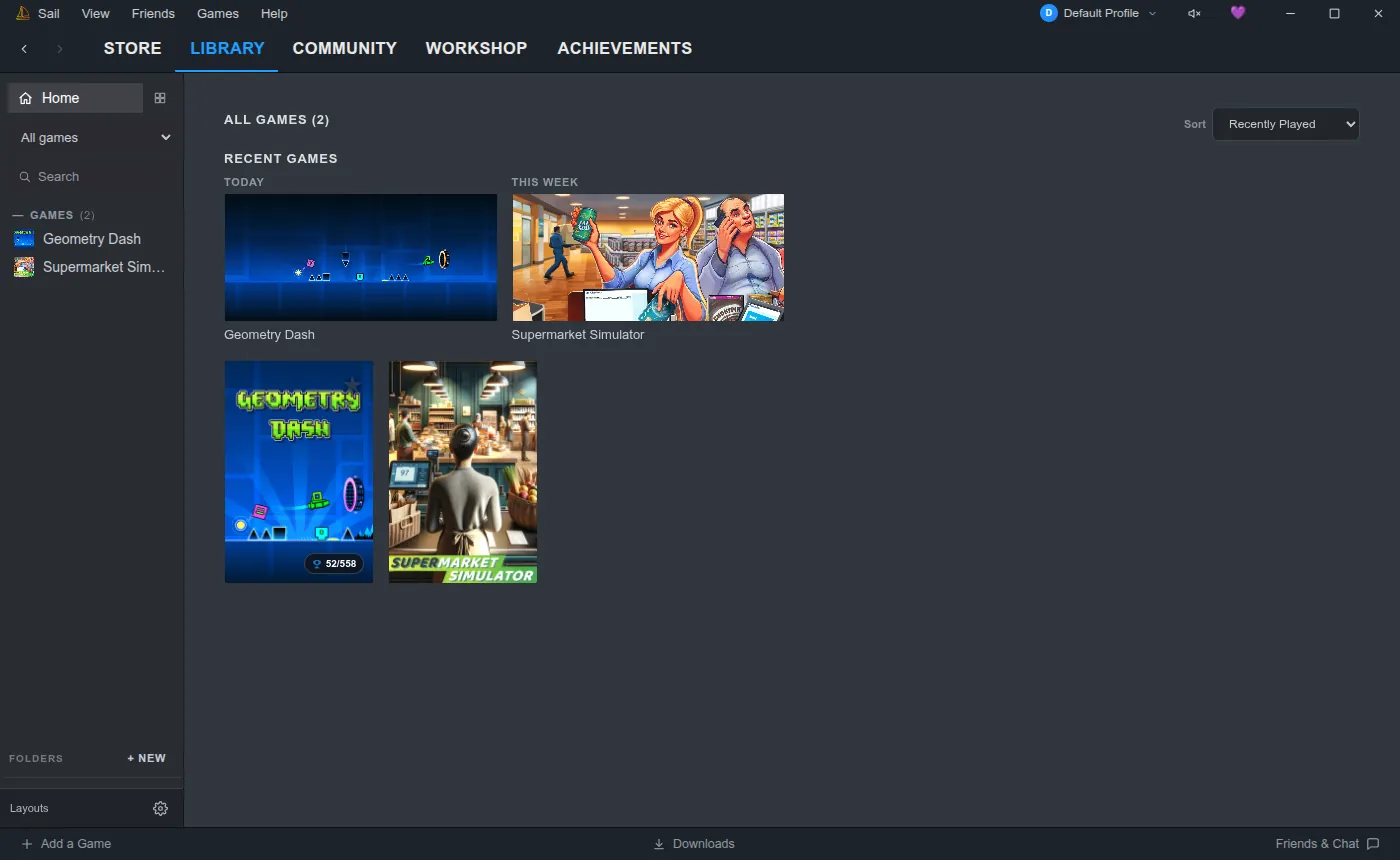 | 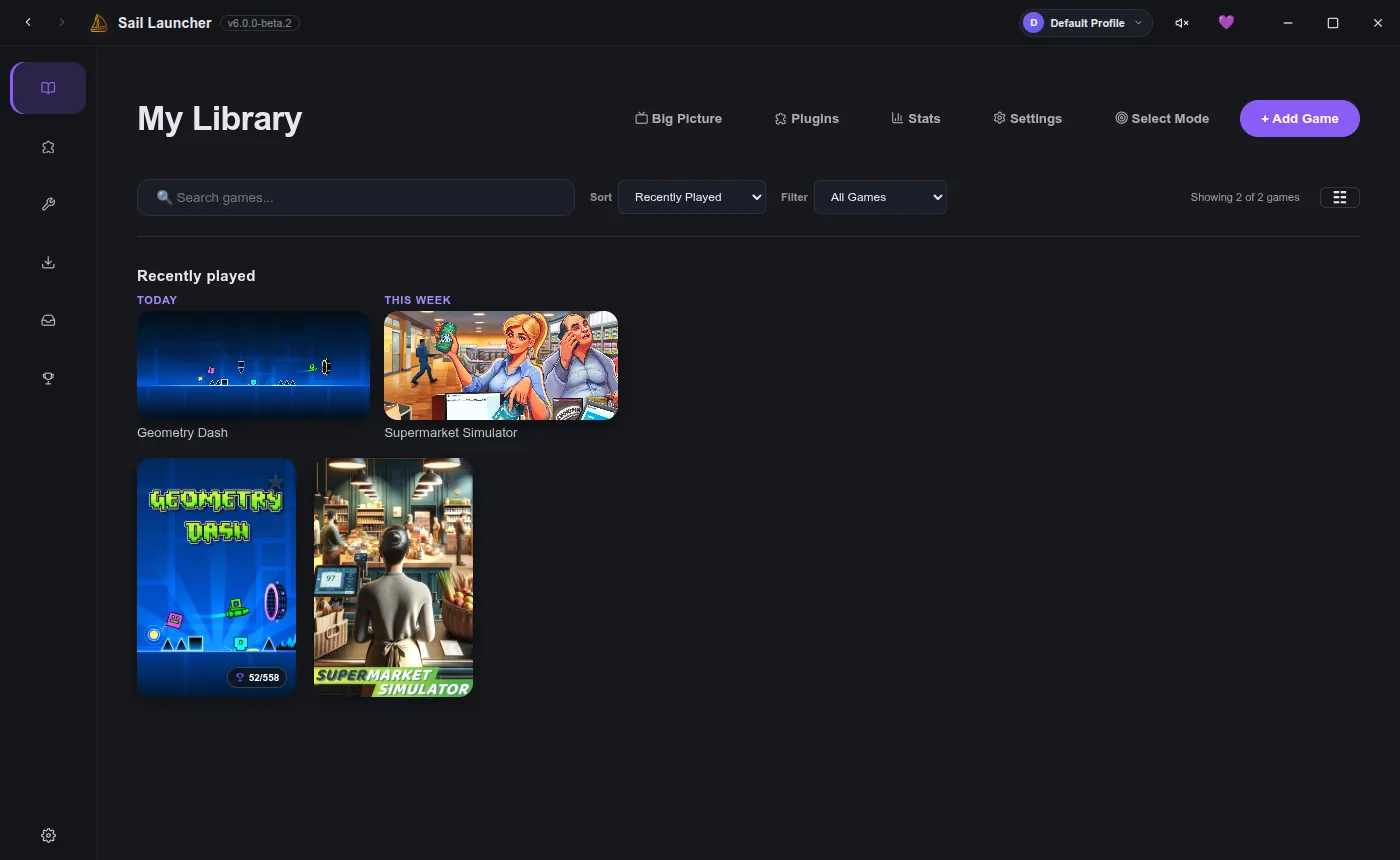 |
Both of these are layouts: the same Sail, re-laid out by a manifest and some CSS.
Your first layout in five minutes#
- Install Library Layouts 2.2 or newer in Sail (from Sail Hub, see Plugins).
- Download the starter layout and unzip it somewhere you keep your projects.
- Open
plugin.jsonand changeidtoyourname.layout-name, then thename,authoranddescription. - In Sail, open Library Layouts' settings (the gear at the bottom of the left panel) and turn on Developer mode. Pick your folder with Choose folder… in the panel that appears, or paste its path into Layout folder.
- Edit
layout.css. Every time you save, Sail shows the change straight away. See Developer mode.
What's in a layout#
my-layout/
  plugin.json     the manifest: what the engine builds, options, colours, words
  layout.css      your look (up to 8 stylesheets)
  preview.png     optional, a picture of your layout (see below)
  images/ fonts/  optional, anything your CSS uses
  README.md       optional
Only CSS, JSON, images (PNG, JPEG, WebP, GIF, SVG), fonts (WOFF, WOFF2) and text files (.md, .txt) are allowed. A layout can hold up to 200 files and 20 MB, each file up to 5 MB, and each stylesheet up to 512 KB.
Library Layouts doesn't show preview.png yet; it's kept for a layout picker with pictures. It's still worth including, so your layout is ready for it.
Learn more#
Last updated 21 October 2026