 Sail Hub
 Saves and backups
Sail can find where a game keeps its saves, back them up every time you play, and put an older version back if something goes wrong.
Finding save folders#
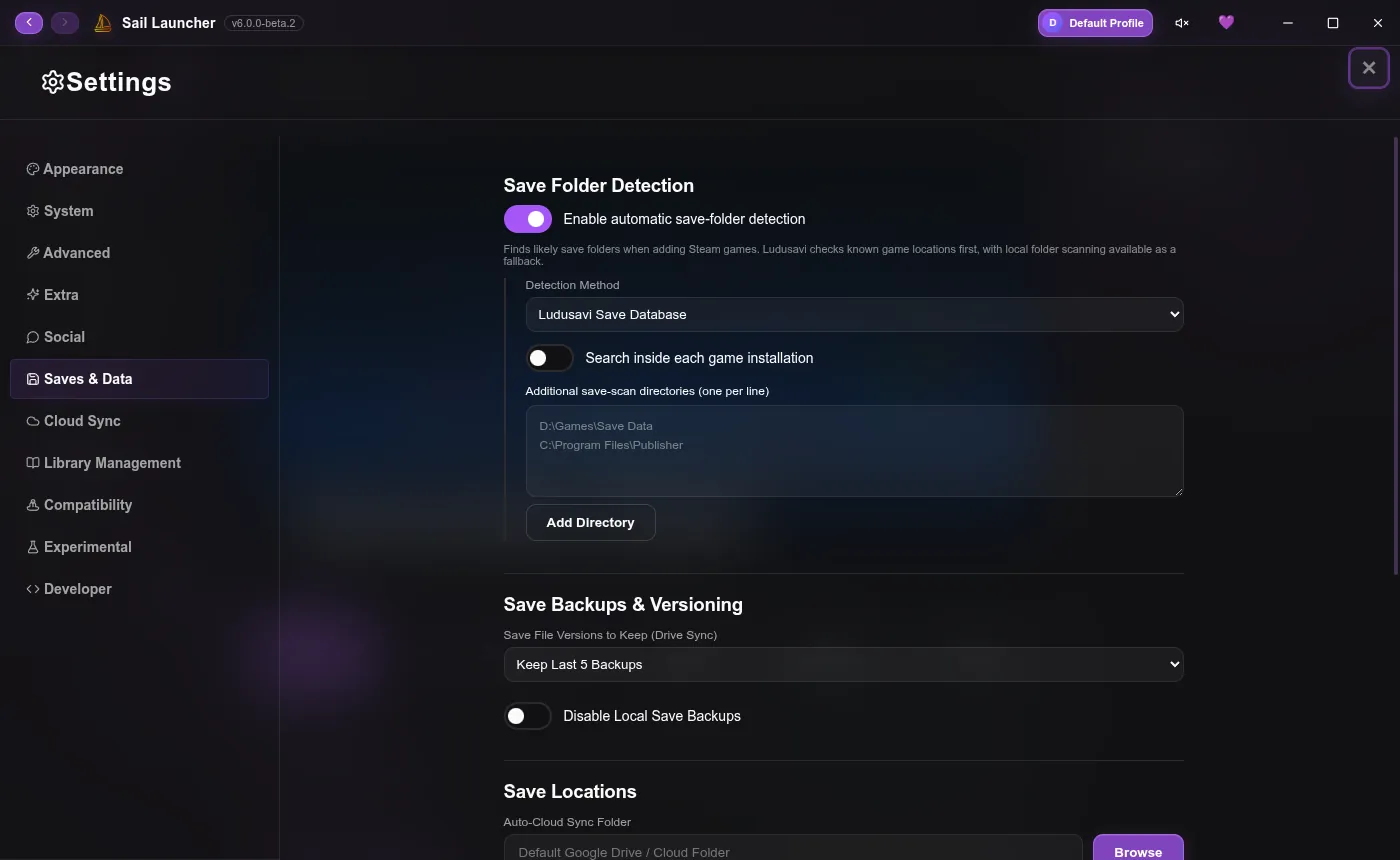
When you add a game, Sail looks for its save folder. It checks the Ludusavi database of known save locations first, then can scan your folders as a fallback. Change how it looks in Settings → Saves & Data:
- Detection Method: Ludusavi's database or the built-in folder scanner.
- Search inside each game installation for games that keep saves next to themselves.
- Additional save-scan directories for places Sail wouldn't think to look, one per line.
If Sail picks the wrong folder, or none, right-click the game, choose Edit Game, and set its save folder yourself.
Backups and versions#
Sail keeps the last 3 versions of each game's saves by default. Under Save File Versions you can keep 5 instead, or turn local backups off.
Restoring an older save only works if Sail kept the backup. If you turn local backups off, there's nothing to go back to.
Syncing saves#
- The Sync Saves button on a game's page backs up and syncs it on demand.
- With sync on, Sail can restore your saves before a game opens and upload them when it closes, so another PC picks up where you left off.
- Saves can go to Sail Cloud. On Windows they can also go to Google Drive, OneDrive, Dropbox or Mediafire, set up in Settings → Cloud Sync.
On Linux#
Windows games on Linux keep their saves inside their Proton environment, separate from Steam's. If you played a game through Steam before, close it, open Manage Game, and use Check for saves and Import Steam save to bring your progress over.
Moving all your data#
Launcher Data in Settings → Saves & Data can Export your whole library and settings to a file and Import it on another PC. Wipe resets Sail completely, so use it carefully.
Last updated 20 October 2026