 Sail Hub
 Accounts and Sail Cloud
A Sail account is optional. Without one, everything works on your PC. With one, your library and settings follow you to every PC you sign in on.
Create an account#
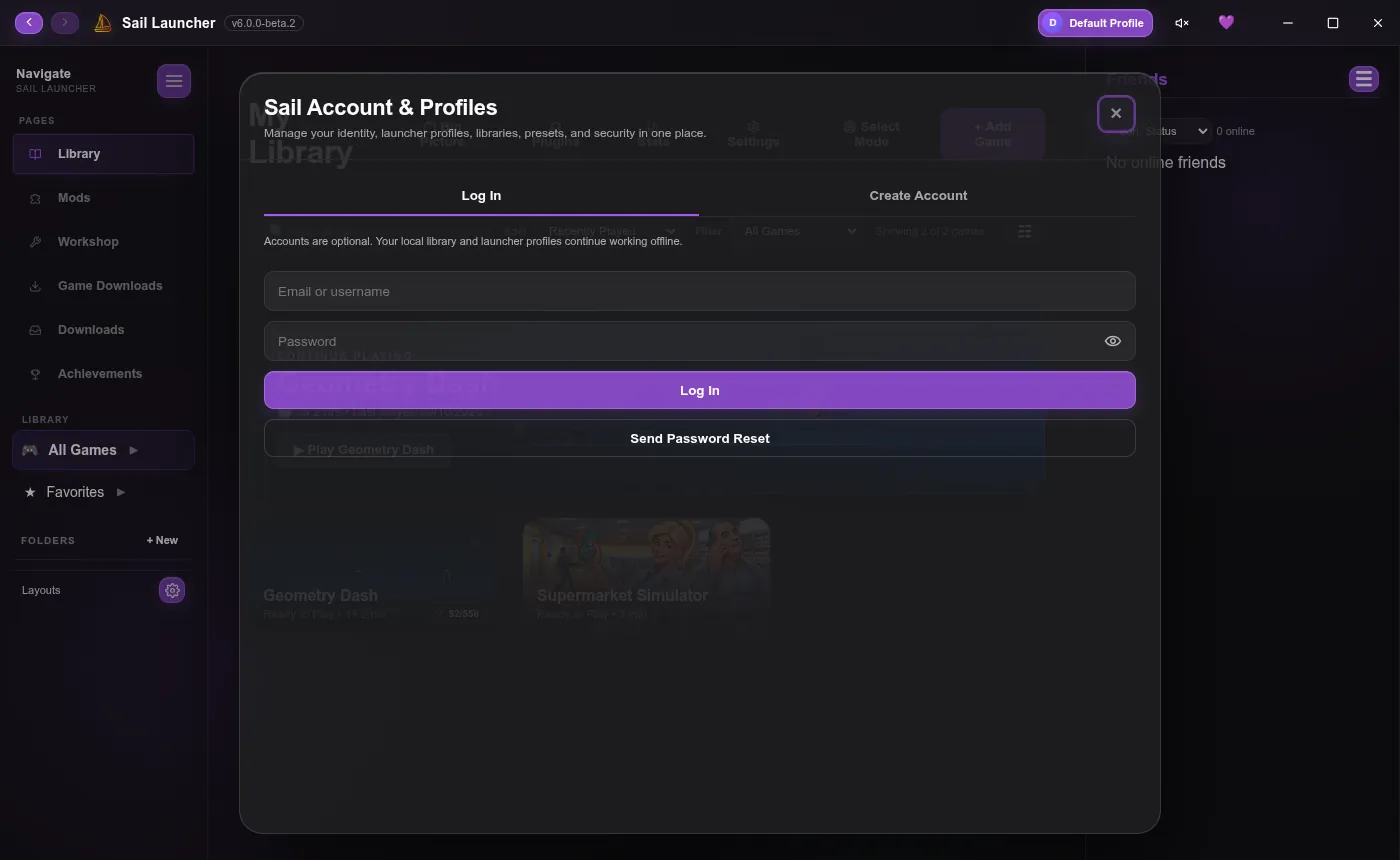
- Click your profile button in the top right, then Create Account.
- Pick a username, enter your email and a password (8 characters or more).
The same account works on Sail Hub, where you can upload themes and plugins.
What Sail Cloud keeps#
Sail Cloud comes with your account. Once you're signed in, it syncs on its own:
- your launcher profiles, libraries and presets,
- your settings and themes,
- and each game's configuration.
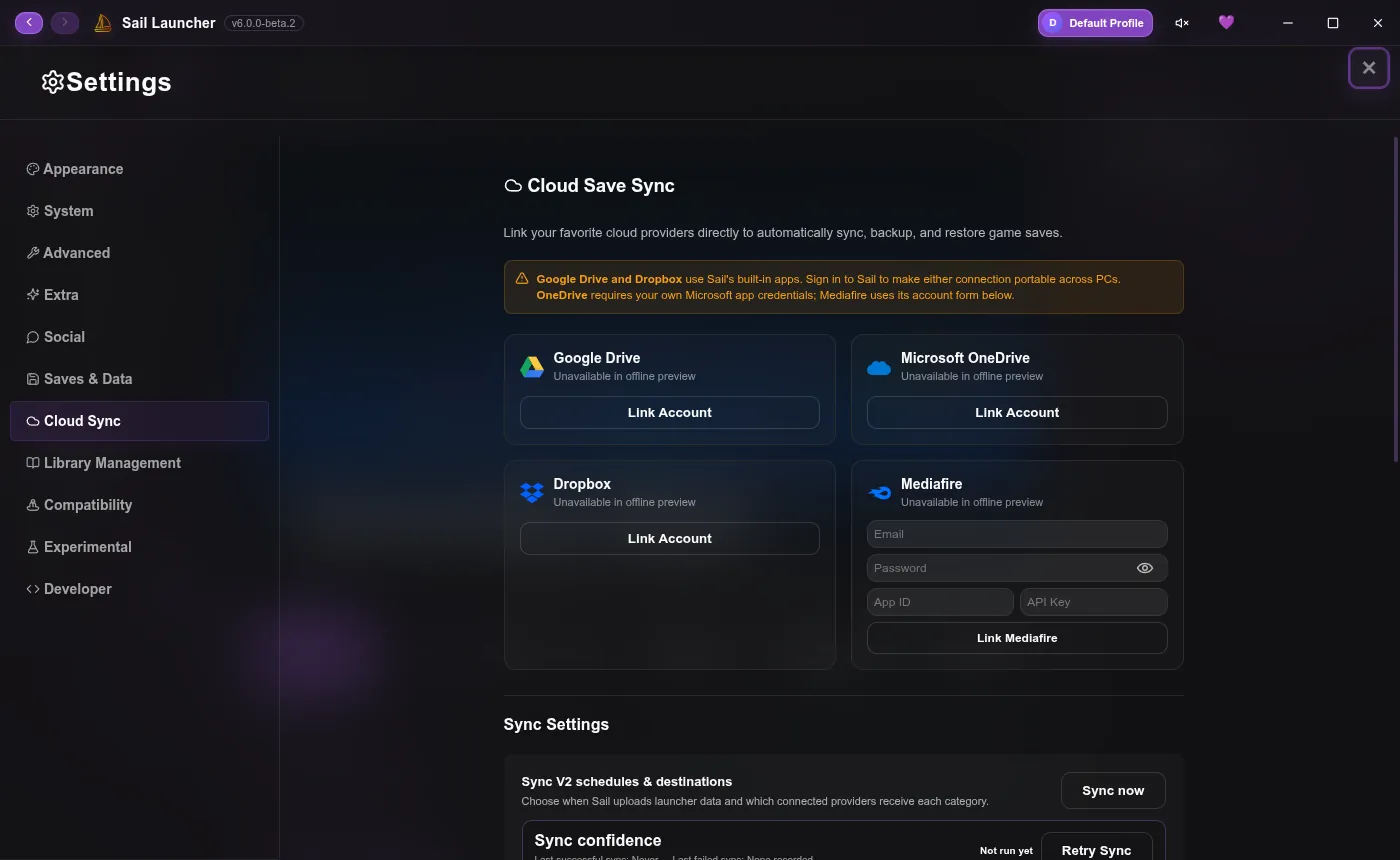
Game saves can use Sail Cloud too, if you turn on Sync game saves to Sail Cloud in Settings → Cloud Sync. You can leave out games you don't want uploaded.
Paths to games on this PC, and passwords or keys for other services, are never uploaded. On another PC your games show up, but you may need to point Sail at where they're installed there.
Your storage use is shown in your account window. View Uploaded Files lists everything in Sail Cloud and lets you delete things.
Sync settings#
In Settings → Cloud Sync you choose when Sail uploads (by hand, after changes, or on a timer) and what happens when two PCs changed the same thing:
- Prompt + keep backups (the default): Sail asks you, and keeps both versions.
- Newest wins or Local wins if you'd rather it decided on its own.
Profiles#
Profiles are separate libraries and settings on one PC, handy when you share it. Create, rename and switch them in the account window. A profile can have a PIN: it keeps others out of your profile, but it's a privacy lock, not encryption. Five wrong tries lock it for a while, a bit longer each time.
Each profile can also hold several game libraries, if you like to keep collections apart.
Signing out#
Signing out keeps your library on this PC. On Linux, accounts need a keyring (KDE Wallet, GNOME Keyring or KeePassXC) to store your login safely; without one, accounts stay off.
Last updated 20 October 2026