 Sail Hub
 First steps
A fresh Sail is an empty library. Here's how to fill it and find your way around.
Import your Steam games#
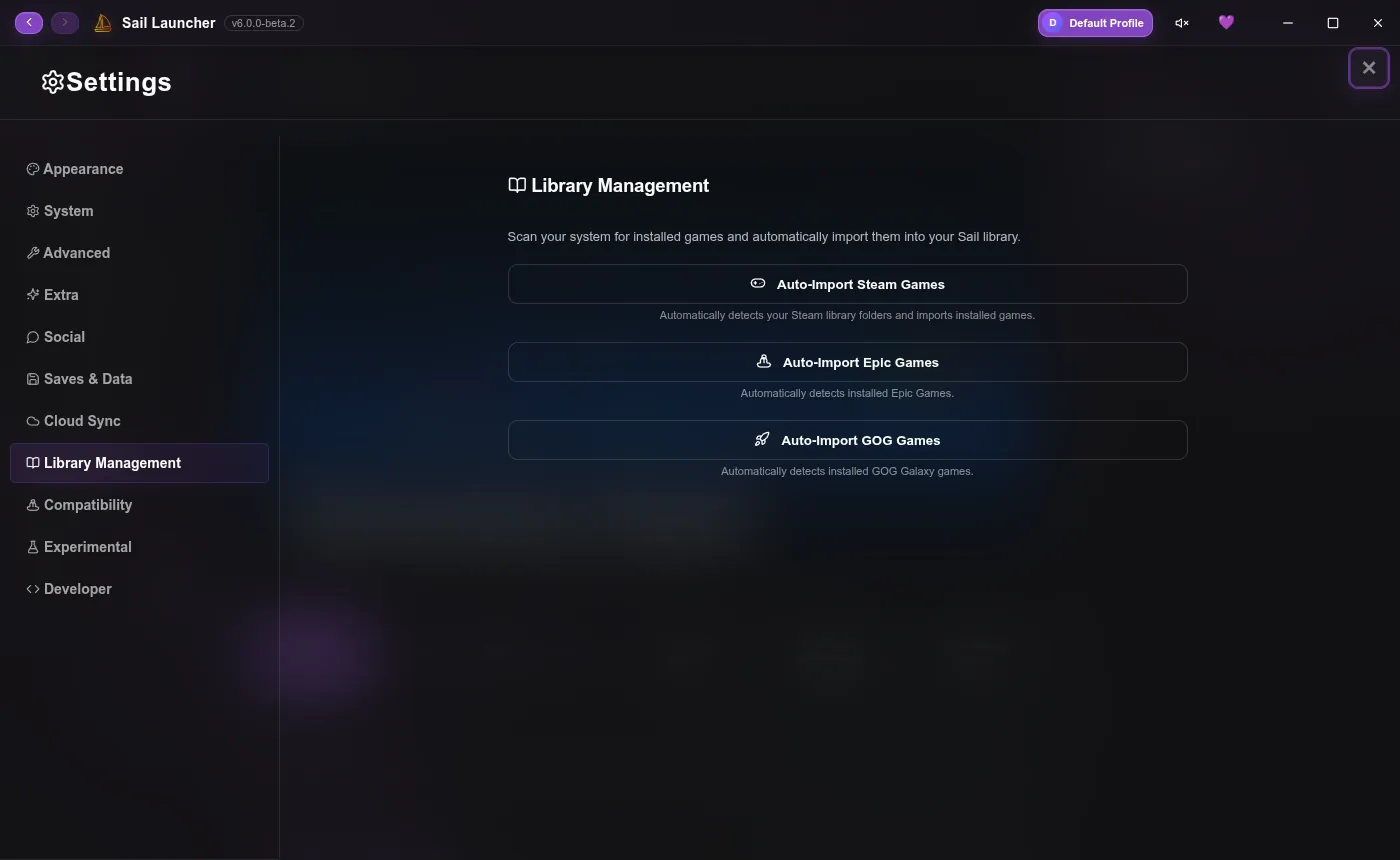
- Click Settings at the top of your library.
- Open the Library Management tab.
- Click Auto-Import Steam Games. Sail finds your Steam library folders and adds every installed game, with its artwork.
Steam doesn't need to be running for the import. When you play, Steam games launch through Steam, so your Steam playtime and achievements keep counting too.
Add any other game or app#
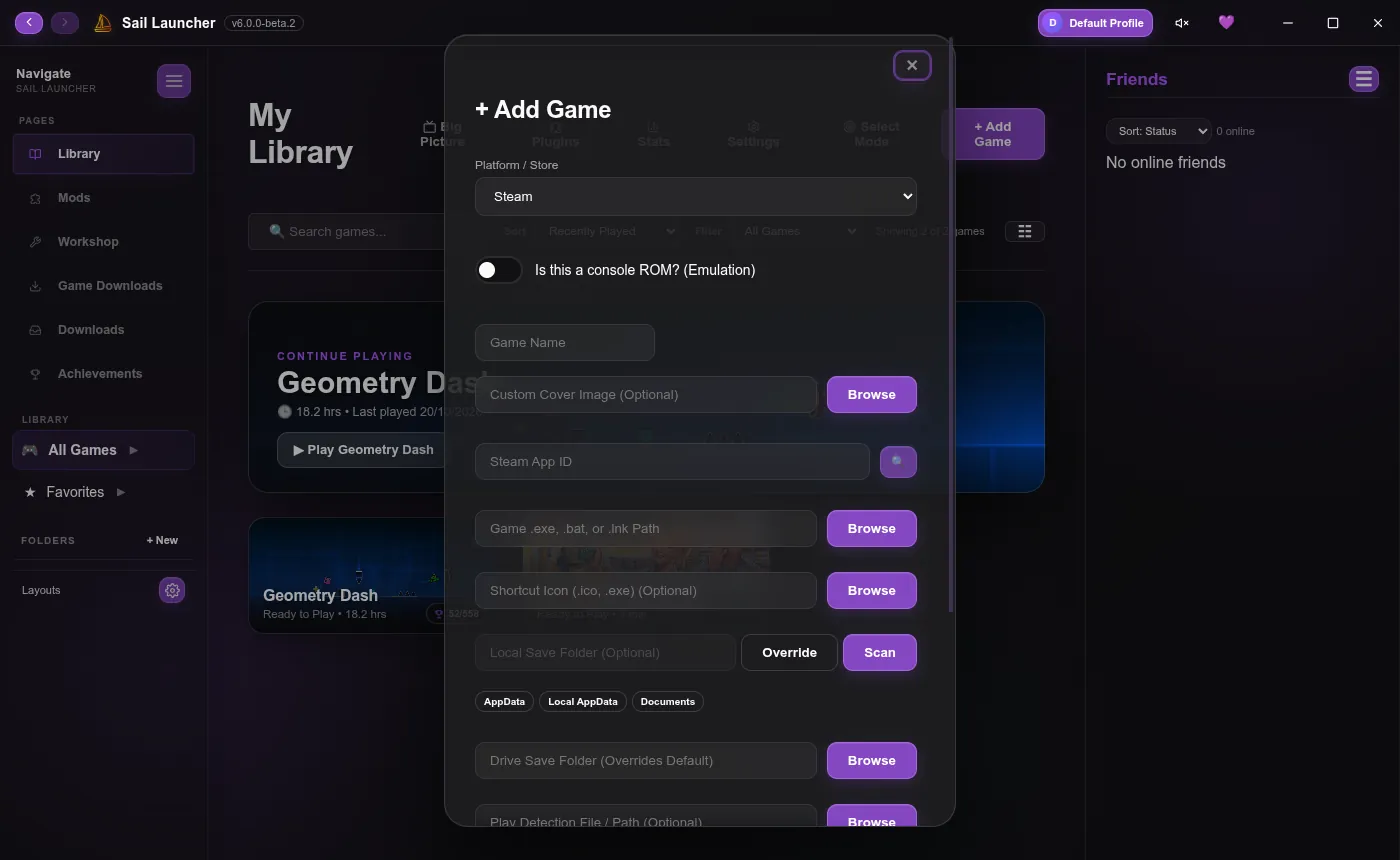
- Click + Add Game.
- Give it a name and choose its program. Under Platform / Store, pick where it comes from (Custom, Steam, Epic Games or GOG Galaxy).
- Optionally choose a cover image. Sail can also find artwork and details for you.
For a console game, tick Is this a console ROM? and choose the emulator and the ROM file. Launch arguments can use %rom% for the ROM's path, like -fullscreen "%rom%". (Emulator games aren't on Linux yet.)
Find your way around#
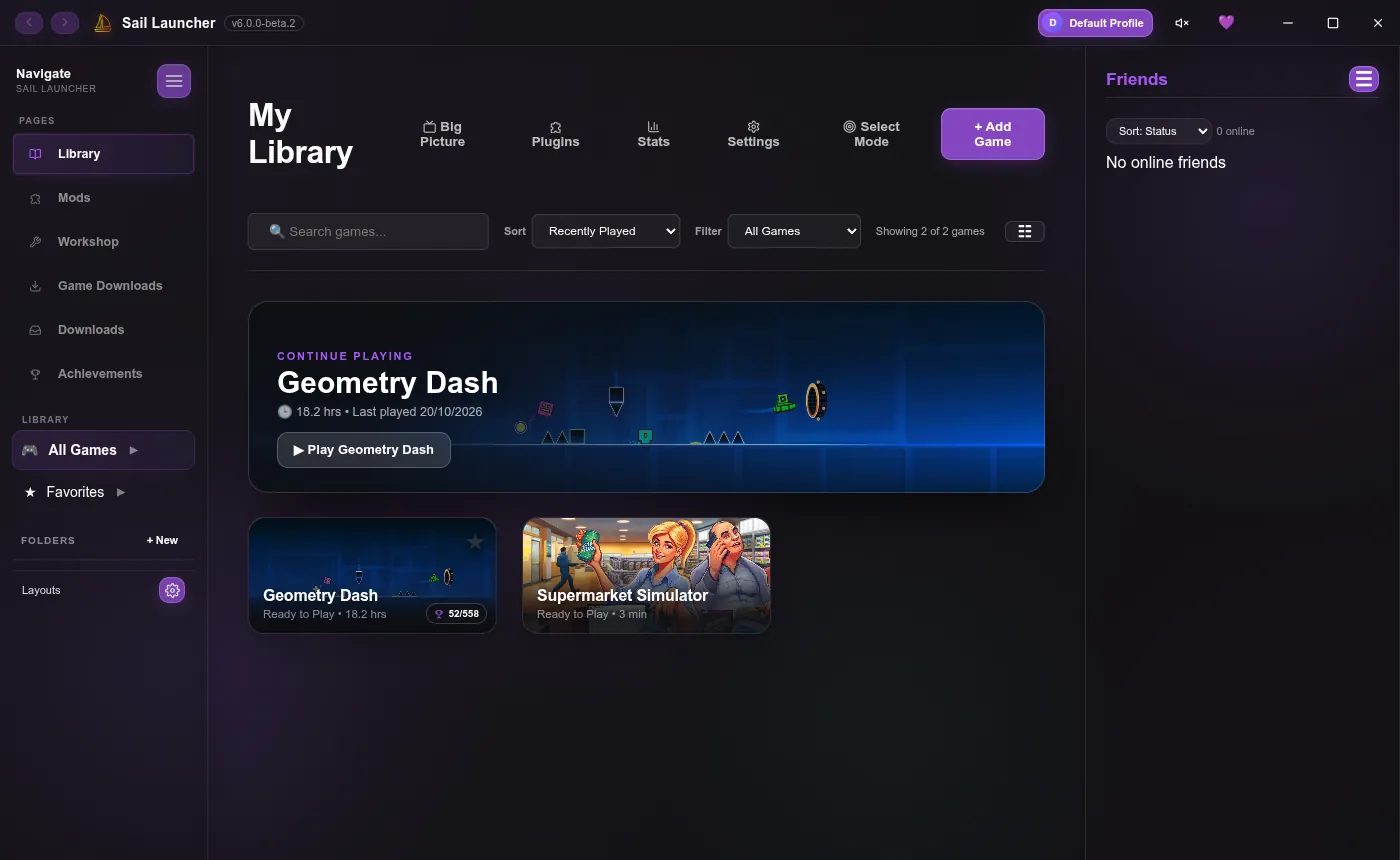
- Library: your games. Click one to open its page, with Play, its stats, achievements and Manage Game (launch options, compatibility, saves and files).
- Mods and Workshop: browse mods and the Steam Workshop.
- Game Downloads and Downloads: search game sources and keep track of downloads.
- Achievements: everything you've unlocked across your games.
- Settings: themes, accounts and Sail Cloud, compatibility tools, data and backups, and more.
Make it yours#
- Change the theme, background, fonts and tile size in Settings.
- Install plugins from Sail Hub. See Plugins.
- Want Sail to look like Steam, or something else entirely? Install Library Layouts.
Last updated 20 October 2026