 Sail Hub
 Downloading games
Sail can search several game sources at once, download what you pick, and set it up so it's ready to play.
Sail is a tool. It doesn't give you rights to any game; you're responsible for having permission to download and play what you get with it.
Find a game#
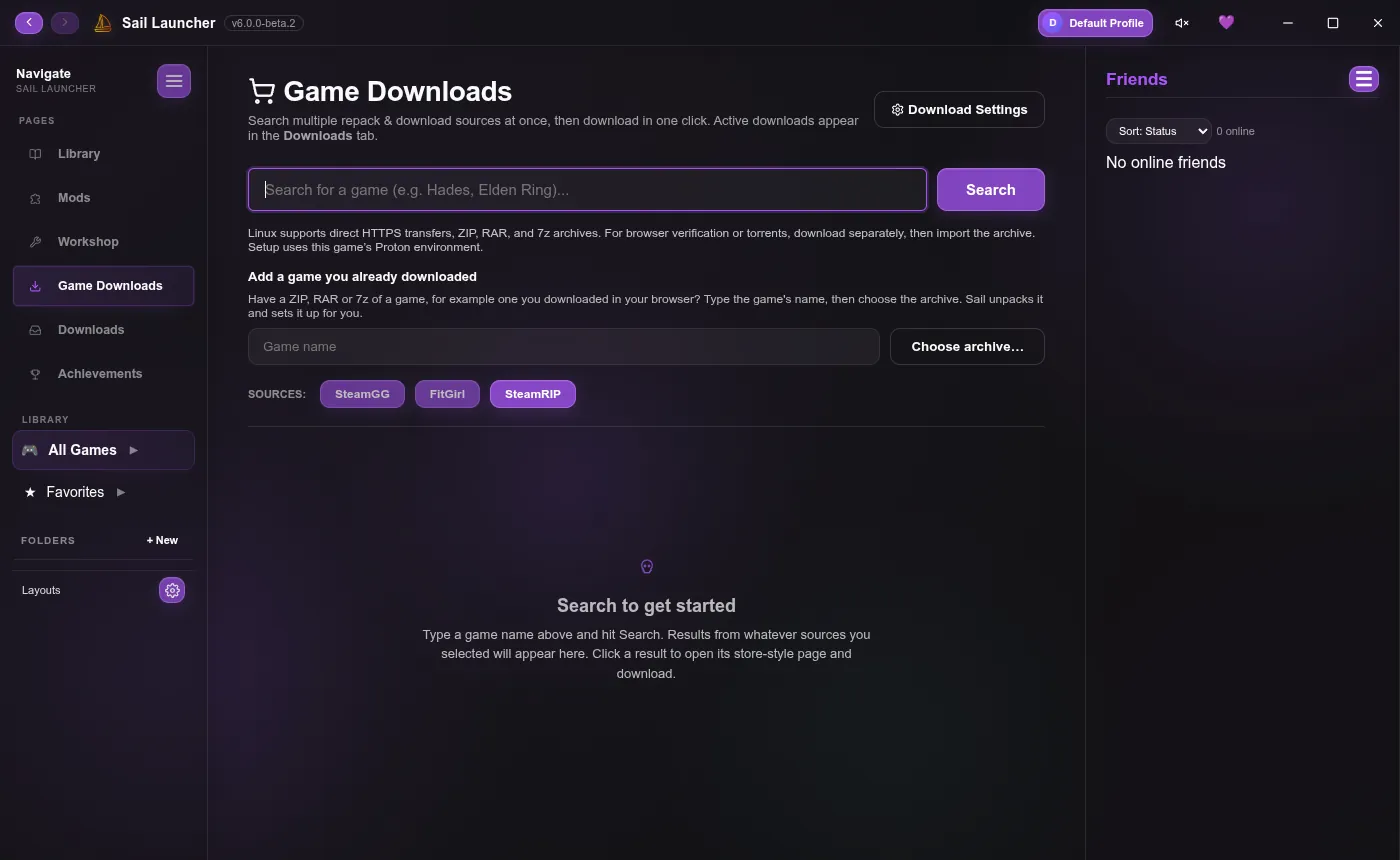
- Open Game Downloads in the sidebar.
- Type a game's name and click Search. The chips under Sources choose which sites are searched (such as SteamRIP and FitGirl Repacks).
- Click a result to open its page, with its description and screenshots.
- Click Download and choose a download option. Sail tells you how big it is before it starts.
While it downloads#
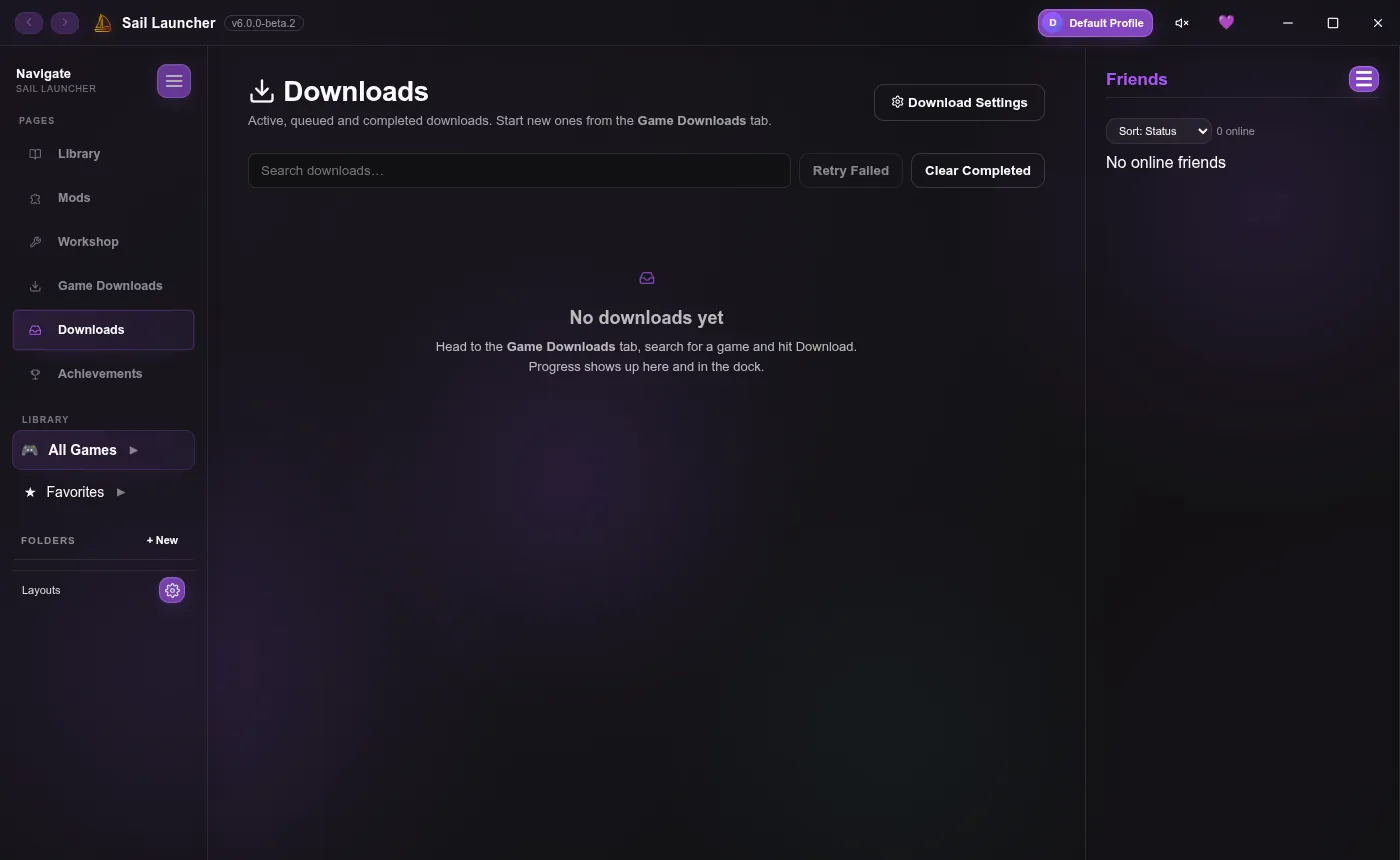
Downloads show up on the Downloads page and in the dock at the bottom. You can pause, resume, retry or cancel each one, retry everything that failed with Retry Failed, and tidy up with Clear Completed.
When a site wants to check you're human#
Many file hosts protect their downloads with a check such as Cloudflare or a captcha. When one does, Sail opens the host's page in a verification window. Finish the check there, just like in a browser, and Sail picks the download up as soon as it starts. A few hosts only work in your normal browser; for those, Sail shows Open in Browser.
Why Sail can't just skip these checks is in the FAQ.
After it downloads#
By default Sail:
- unpacks the archive (ZIP, RAR, 7z),
- runs FitGirl repack installers for you, silently, into your install folder (this step is heavy on the CPU and may show one Windows permission prompt),
- and adds the finished game to your library.
Each of these can be turned off in Download Settings.
Download Settings#
Open them from the Download Settings button on either downloads page.
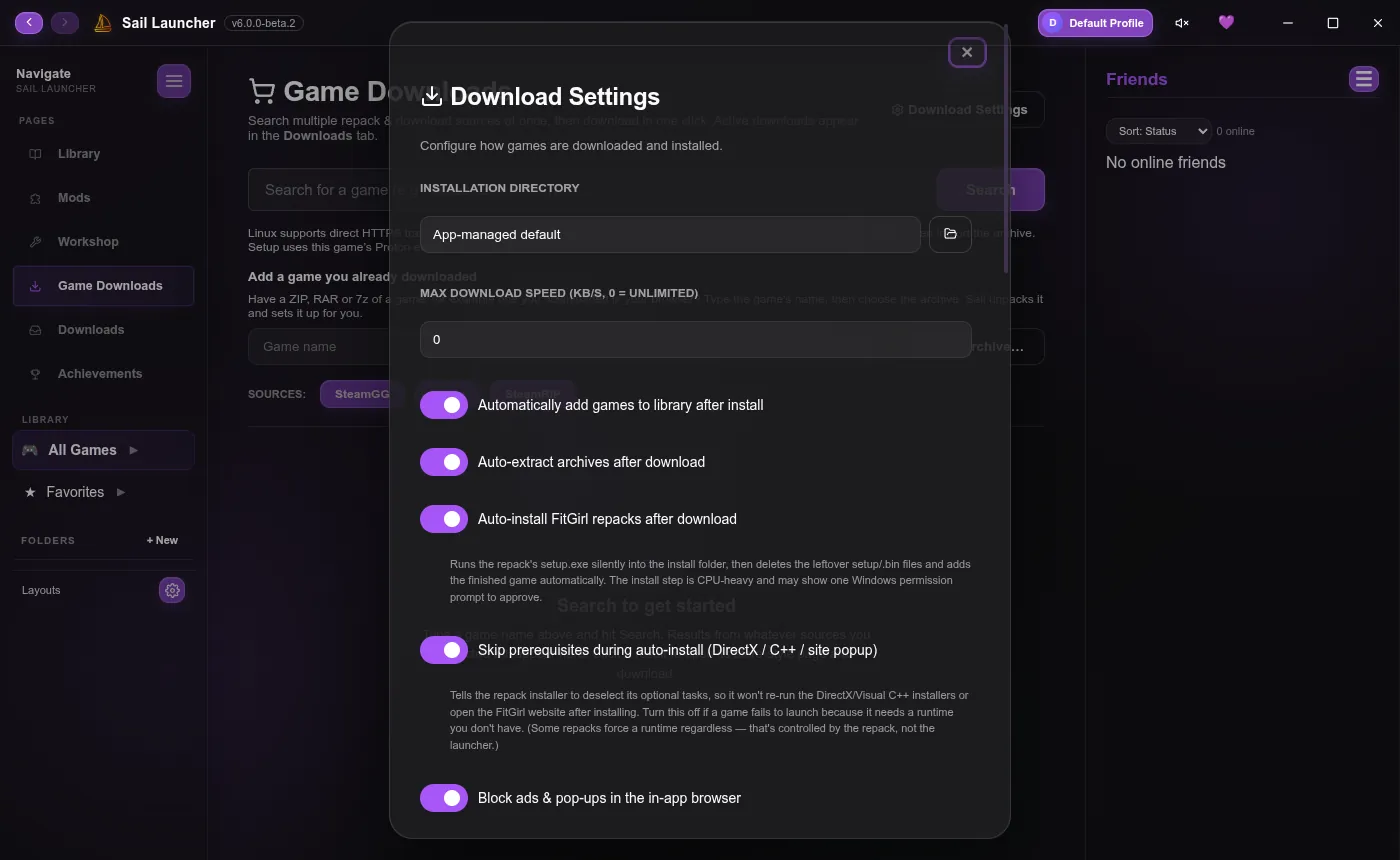
- Installation Directory: where games go. By default, Sail's own data folder (
SailDownloads). - Max Download Speed and Max Concurrent Downloads.
- Unpacking, auto-install and adding to the library after install.
- Skip prerequisites during auto-install: stops repacks from re-running the DirectX and Visual C++ installers. Turn it off if a game won't start because it needs one of them.
- Blocking ads and pop-ups in Sail's browser, and taking over downloads started there.
- Debrid services.
- Clear Cache forgets saved download links, so expired ones are fetched again. Your library and games aren't touched.
Cancelled downloads#
When you cancel a download, its half-finished files are kept aside in a protected quarantine instead of being deleted on the spot, so a broken download can never be mistaken for a finished game. Delete them whenever you like with Delete temporary files in Download Settings.
On Linux#
Linux handles direct downloads and ZIP, RAR and 7z archives. For a game that needs something else, download it in your browser, then add it with Add a game you already downloaded. Installers run in that game's Proton environment.
Last updated 20 October 2026