 Sail Hub
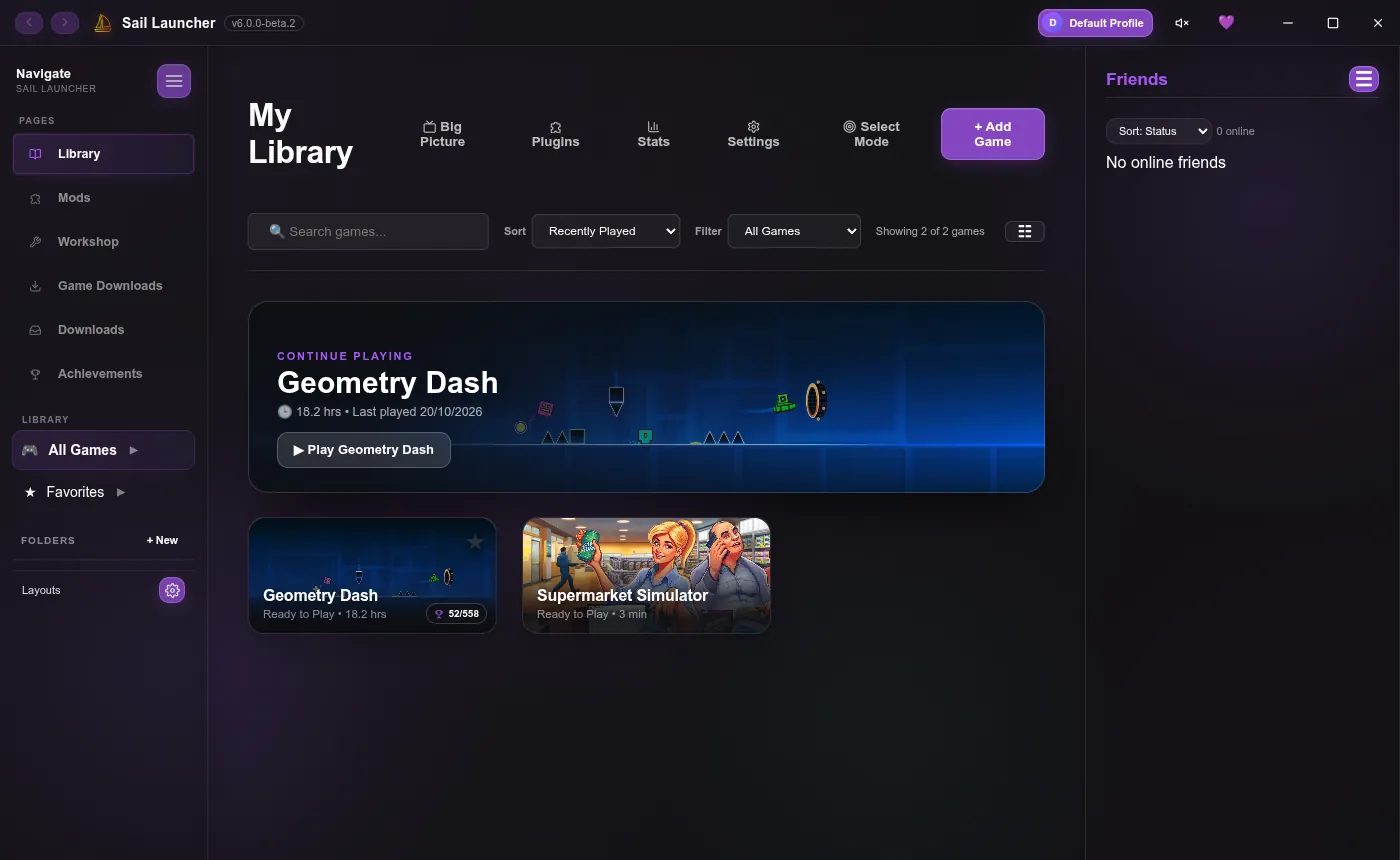
 Your library
Everything you add lives in your library: Steam games, other stores, emulators, or any program at all.
Adding games#
Import from a store#
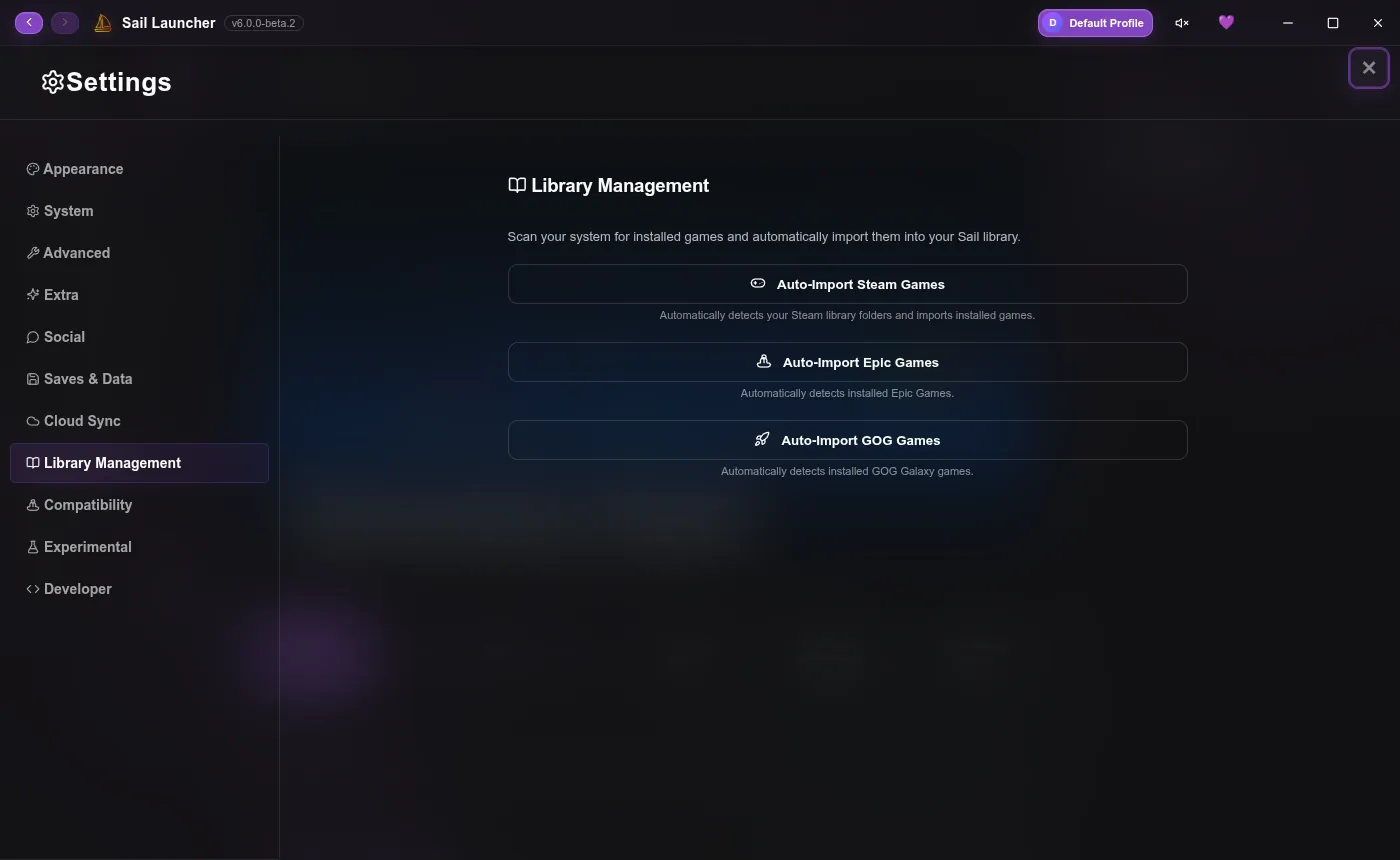
Open Settings → Library Management. Sail can find and import what you already have installed:
- Auto-Import Steam Games finds your Steam library folders and adds every installed game.
- Auto-Import Epic Games and Auto-Import GOG Games do the same for the Epic Games Launcher and GOG Galaxy.
Add anything else#
Click + Add Game, give it a name, and choose its program (an .exe, .bat or .lnk on Windows). Pick where it comes from under Platform / Store, and optionally a cover image. For a Steam game, Sail can use its Steam App ID to fetch artwork and details.
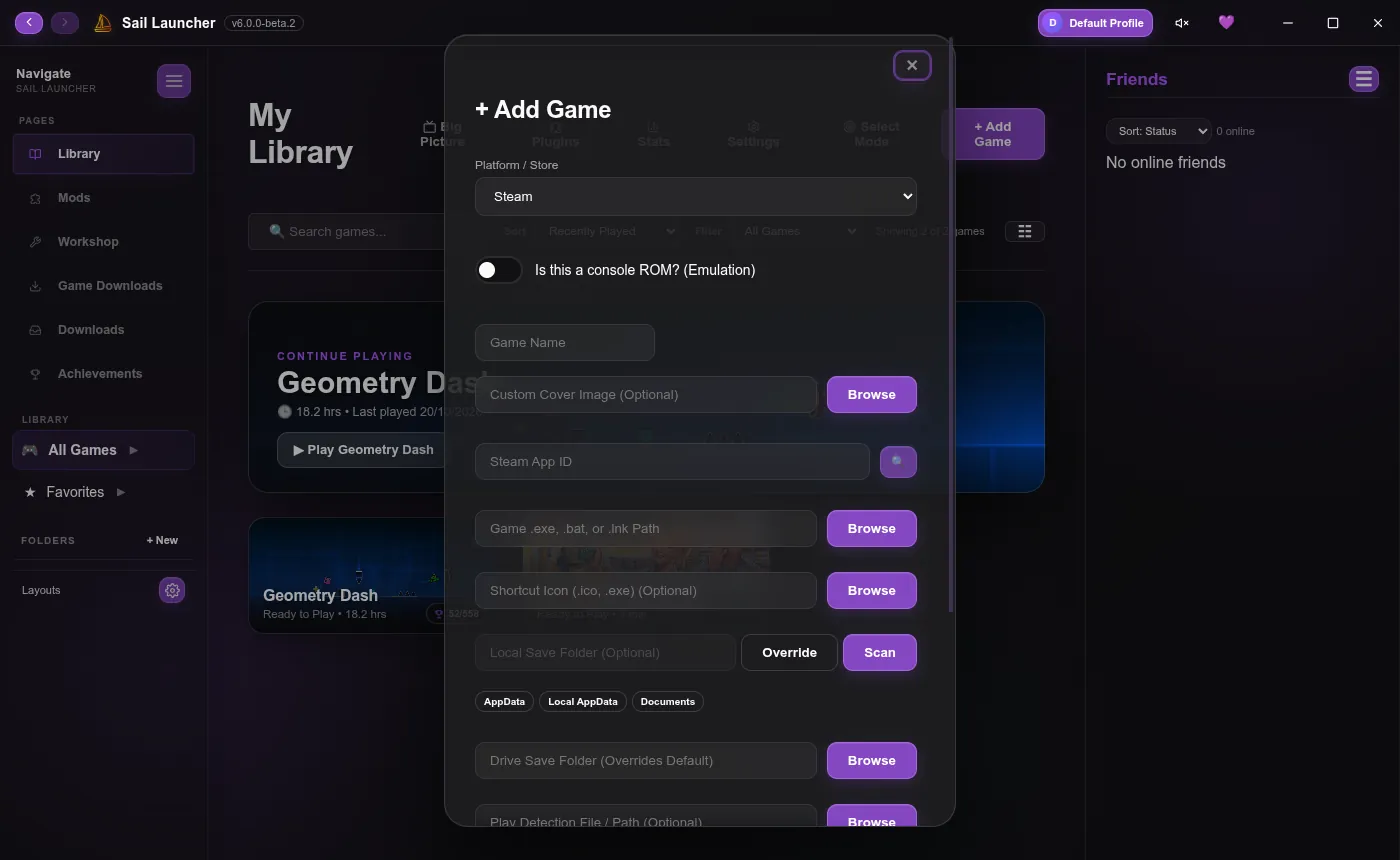
For a console game, tick Is this a console ROM?, then choose the emulator and the ROM file. Launch arguments can use %rom% for the ROM's path, like -fullscreen "%rom%". (Emulator games aren't on Linux yet.)
Add a game you downloaded yourself#
Got a game as a ZIP, RAR or 7z, for example from your browser? On the Game Downloads page, under Add a game you already downloaded, type its name and click Choose archive…. Sail unpacks it and sets it up for you.
The game page#
Click a game to open its page: artwork, Play, your play time and achievements, and its details.
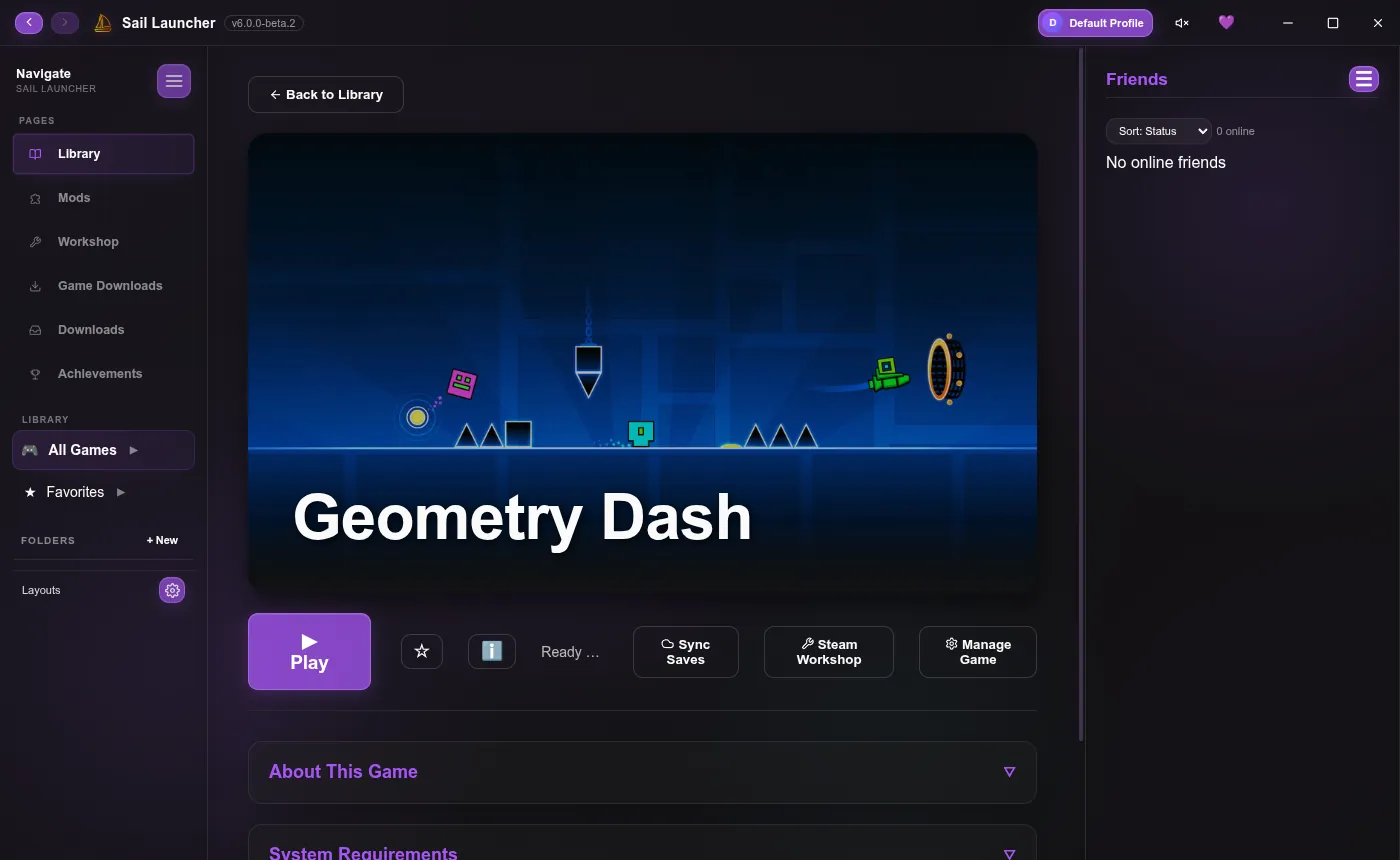
- ☆ adds it to your favorites.
- Sync Saves backs up and syncs its saves (see Saves and backups).
- Steam Workshop opens its mods, for Steam games.
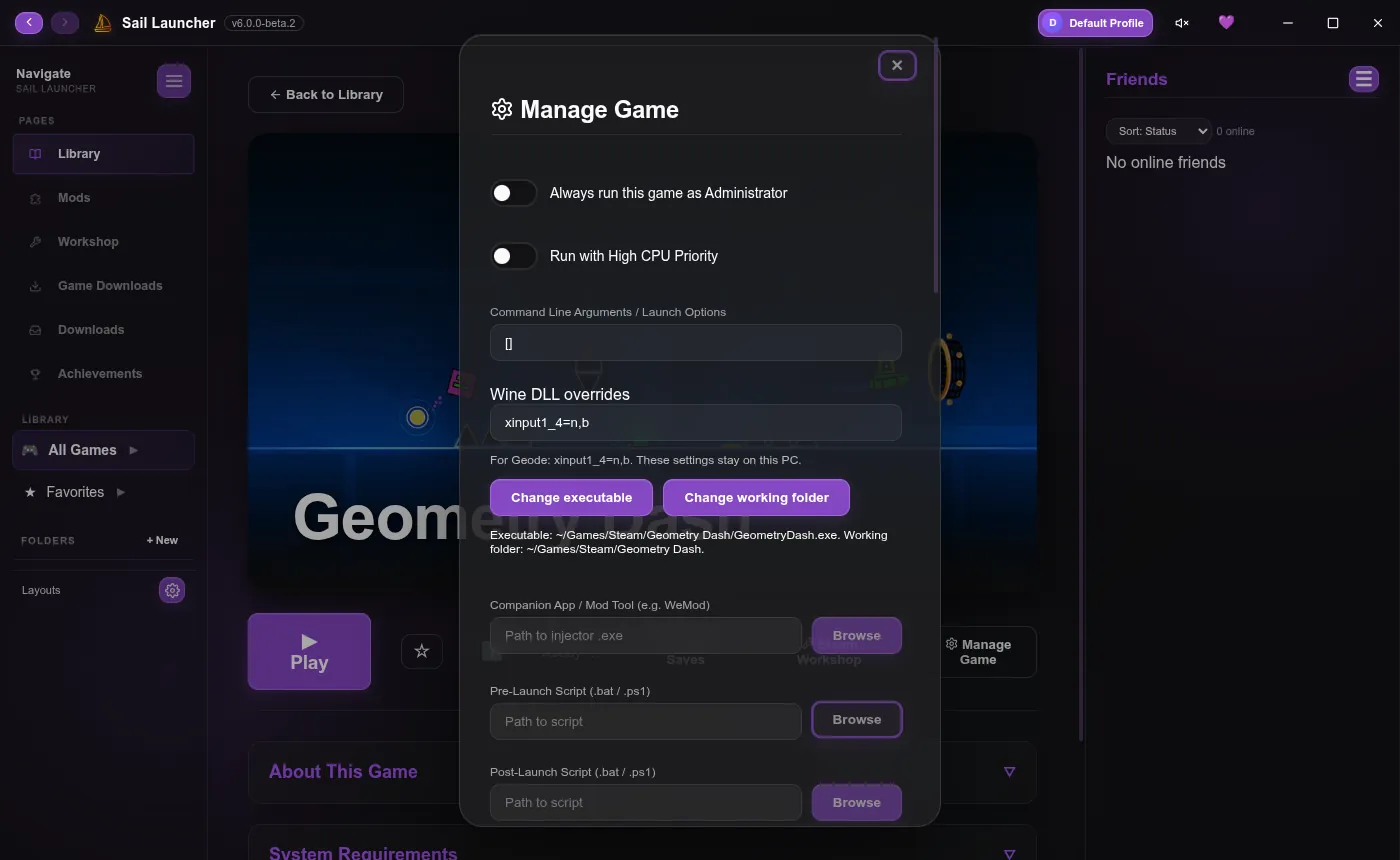
- Manage Game changes how it launches (below).
Manage Game#
Everything about how one game starts:
- Run as administrator, or with high CPU priority (Windows).
- Launch options (command-line arguments).
- A companion app or mod tool that starts with it, like WeMod.
- Scripts that run before it starts and after it closes.
- On Linux: which Proton it uses, DLL overrides and Windows components. See Windows games on Linux.
- Its files, a desktop shortcut, and a backup of the whole game folder.
Editing a game#
Right-click a game in your library and choose Edit Game to change its name, program, cover art or save folder.
Keeping it tidy#
- Folders: click + New under Folders in the sidebar to group games your way.
- Favorites and the dynamic folders (Recently Played and Never Played) fill themselves. You can show or hide them in Settings → Extra.
- Search, Sort and Filter sit above your games.
- Select Mode picks several games at once, so you can remove them together.
- Surprise Me picks a random game when you can't decide, Stats shows your play time across everything, and Big Picture is a full-screen view for the couch.
Last updated 20 October 2026